
How to Turn a Script Into an Editable Timeline Without Cutting a Single Clip by Hand
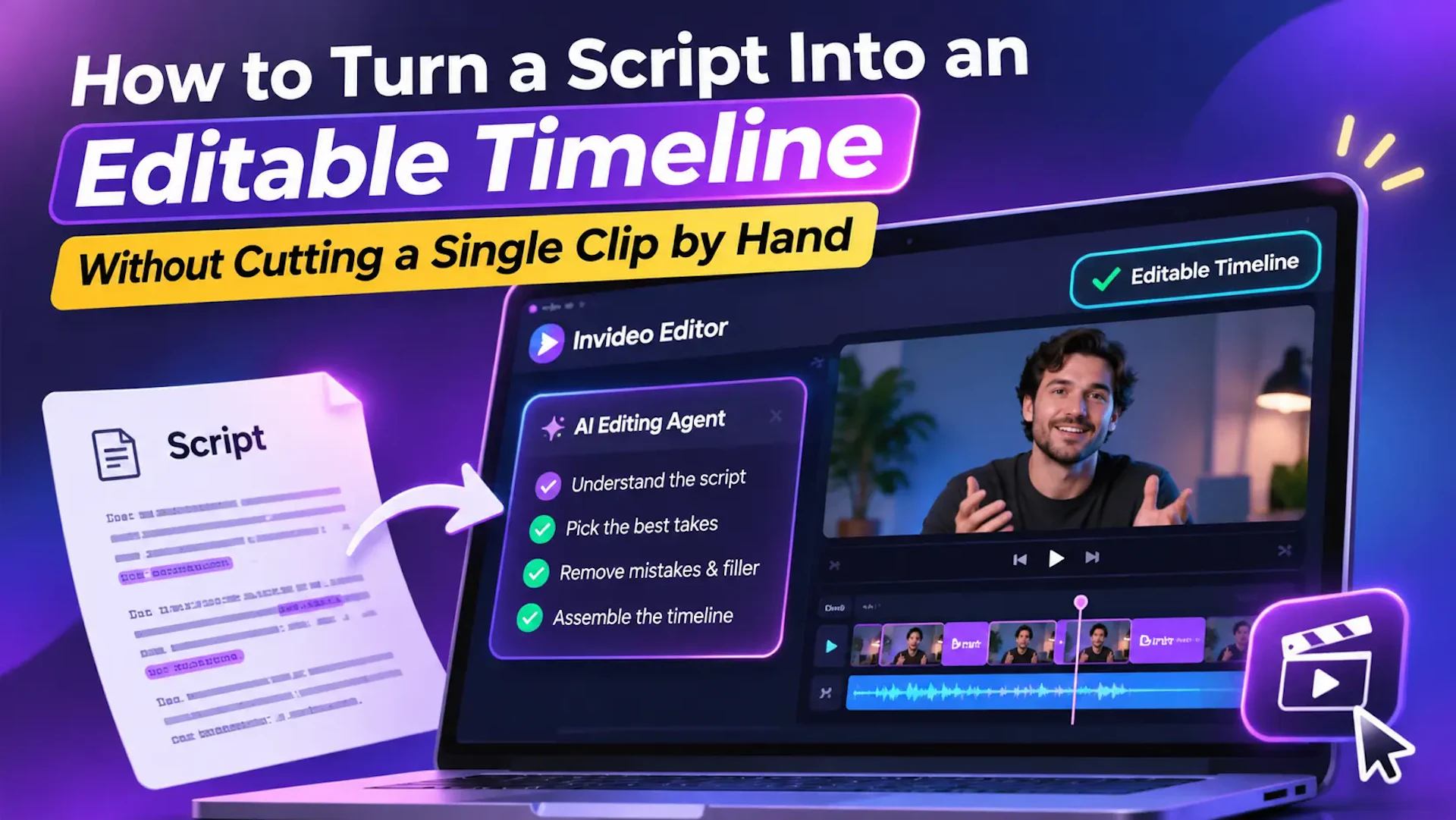
Script to timeline editing is the process of matching a written script to recorded footage. You then arrange the best takes in order on an editing timeline. It is the step between shooting and the real edit, and most creators underestimate how long it takes.
You record your script in five takes. Two have false starts. One has a barking dog in the background. You scrub through everything, pick lines, drag clips into place, and trim the gaps. An hour passes before the creative edit even begins.
That hour is execution, not craft. The good news is that you can hand it off. This guide shows how to build a clean first edit from a script without cutting a single clip by hand. It also covers what to check afterward and which workflow suits the footage you have.
What does a script-to-timeline workflow involve?
A script-to-timeline workflow turns a written script into a first complete edit. The editor reads each line, finds the best take of it, and places that take on the timeline in order.
Four jobs sit inside that process. You review footage, compare takes, remove mistakes, and arrange what is left. Each job is repetitive. None of them needs much creative judgment.
The result is called a base cut. It is the first full pass of your video, running from start to finish. It is not a highlight reel and it is not a finished video. It is the starting point you carry on editing from.
Why does cutting every clip by hand take so long?
Cutting by hand takes a long time because every decision is small and there are hundreds of them. A ten minute video can hide far more raw material than you expect. Each line of your script may exist in three versions.
Here is where the hours usually go:
- Listening to repeated takes to find the cleanest delivery
- Cutting false starts, long pauses and filler words
- Checking each clip against the script so no line is skipped
- Dragging clips into order and closing the gaps
None of that is creative work. It is operational work. It also drains the energy you need for pacing, story and tone, which are the parts viewers actually notice.
Manual cutting is also easy to get wrong. A skipped line or a mismatched take can survive until late in the edit. Finding it then costs more time than catching it early.
What are your options for going from script to timeline?
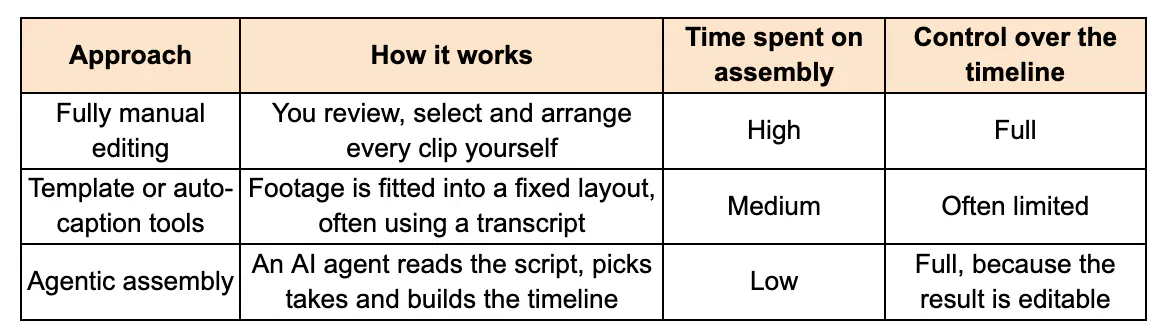
Manual editing gives you control but costs time. Template tools save time but often lock you into a layout.
Agentic assembly aims to give you both. The agent does the grunt work on a normal timeline, and you can still take every change apart.
Which platform should you use for script-to-timeline editing?
The right platform depends on what you have in hand. Two situations come up most often.
The first is that you have recorded footage. In that case you need an editor that can read your script and build a timeline against it. Invideo Editor is built for exactly this. It is a free, browser-based editor with AI agents that review footage, select takes and assemble a base cut.
The second is that you have a script but no footage yet. Here you start one step earlier. You can use text to video to turn your prompt or script into generated clips.
From there, AI agents organise those clips into an editable timeline. You can review it, refine it and export it. The agents can also assemble generated and existing media against a structure you supply.
How do you build a base cut from a script step by step?
The process takes four steps. Go to ai.invideo.io and select Timeline Editor below the prompt box. Create a blank timeline, then follow these steps in Invideo Editor:
- Open Media and upload or drag in your footage.
- Add your script or transcript to the project.
- Create an agent and describe the base cut you want. You can direct it by topic, story, shooting order or transcript.
- Review the assembled timeline and keep shaping the edit.
A simple direction works well. For example: “Build a base cut against this script. Pick one clean take per line and remove false starts.”
The agent reviews the material and picks the usable takes. It cuts the repetition and lays the selected audio and video onto the timeline. Everything stays inside the project, so every result is visible and editable.
One tip for your first run: bring messy footage. A few repeated takes and some false starts show you what the agent actually clears away. Clean single-take footage proves very little, because there is nothing to remove.
Which kinds of footage can the agent assemble?
Invideo Editor handles five kinds of footage. Each one changes how the agent builds the cut.
- Single camera with a script: The agent builds against the script and picks one clean take per line.
- Single camera without a script: It works out what you said, keeps each point once, and drops the repeats.
- Multicam: It syncs the angles, picks clean takes and builds a layered cut.
- Music or beat-led: It arranges footage around a music edit or beat pattern.
- Generated media: It assembles generated and existing media against a structure you supply.
This range matters because few projects are the same. A talking-head tutorial, a podcast and a music video all need different logic. You describe the structure in plain language, and the agent adapts.
The agent can also remove silence and filler words. It can add chapter markers and swap one take for another. You can search footage by describing the moment you want, such as a line of dialogue or an emotion.
What should you check after the base cut is built?
Treat the base cut as a draft and review it with a short checklist. Five minutes here saves a lot of rework later.
- Script coverage: Confirm every line is present and in the right order.
- Take choice: Listen to the chosen takes. Swap any that feel flat.
- Pacing: Look for gaps that feel too long or cuts that feel rushed.
- Silence and filler: Check that pauses suit the rhythm of the piece.
- Chapter markers: Make sure sections break where viewers would expect.
Invideo Editor lets you inspect every change the agent made. You can then keep refining by hand. That balance is the point. The agent handles execution, and you keep the judgment.
Once the base cut feels right, move on to finishing. That can mean colour and grading, sound effects, dialogue cleanup and mixing. It can also mean dubbing, platform-specific versions and social cuts.
What mistakes slow down script-to-timeline editing?
A few mistakes cause most of the wasted time. All of them are easy to avoid.
- Giving vague direction. “Make it good” tells an agent nothing. Name the structure, the order and what to remove.
- Treating the base cut as the final video. It is a starting point. The value comes from the edit you do next.
- Skipping the script. If you have one, add it. The agent can then pick one clean take per line.
- Skipping the review. Always listen through the assembled timeline before you refine it.
- Testing with perfect footage. Cleanness hides the real benefit. Use a messy recording to see the difference.
Final thoughts
Turning a script into an editable timeline should not eat your afternoon. The repetitive part is reviewing takes, cutting mistakes and arranging clips. The creative part is deciding how the story should feel.
Invideo Editor puts a professional timeline and AI agents in the same place. You direct the cut in words, and the work comes back on a timeline you can still take apart. Start with a script and a folder of messy footage, and see how much of the grunt work disappears.
FAQs
- Can AI turn a script into a video timeline automatically?
Yes. An AI editing agent can read a script, review your footage and pick the usable takes. It then lays them onto an editable timeline in script order. You review the result and keep refining it by hand. - What is a base cut in video editing?
A base cut is the first complete timeline assembled from your usable footage. Repeated takes, mistakes, pauses and filler are removed. It runs from start to finish, but it is a starting point and not a finished video. - Do I need a script to build a timeline with AI?
No. Without a script, the agent works out what you said. It keeps each point once and drops the repeats. A script simply gives it a clearer structure to build against. - Can AI remove filler words and repeated takes?
Yes. Silence and filler removal is part of the assembly process. The agent also cuts repeated takes and false starts. You can inspect every change and adjust anything you disagree with. - Is Invideo Editor free to use?
Yes. Invideo Editor is completely free to use and runs in the browser. You sign up, open the Timeline Editor at ai.invideo.io, and start editing.